click here to visit the Flight Illusion Website

  UPDATED Saturday 15th December 2007
 e-mail us 
Quick Find:

   The CPFlight MCP737 - Using It With The PMDG

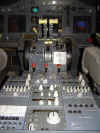
A very expensive 'piece of kit' (about GB£460) , but worth every penny if you are looking for the realism an MCP can give you in the 'Pit'.   I have it configured through the 737kbd file to command the PMDG 737 and it does it very well with one minor discrepancy, there is no SPD or ALT Intervention modelled.
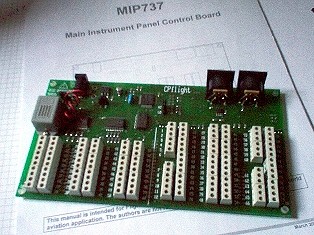
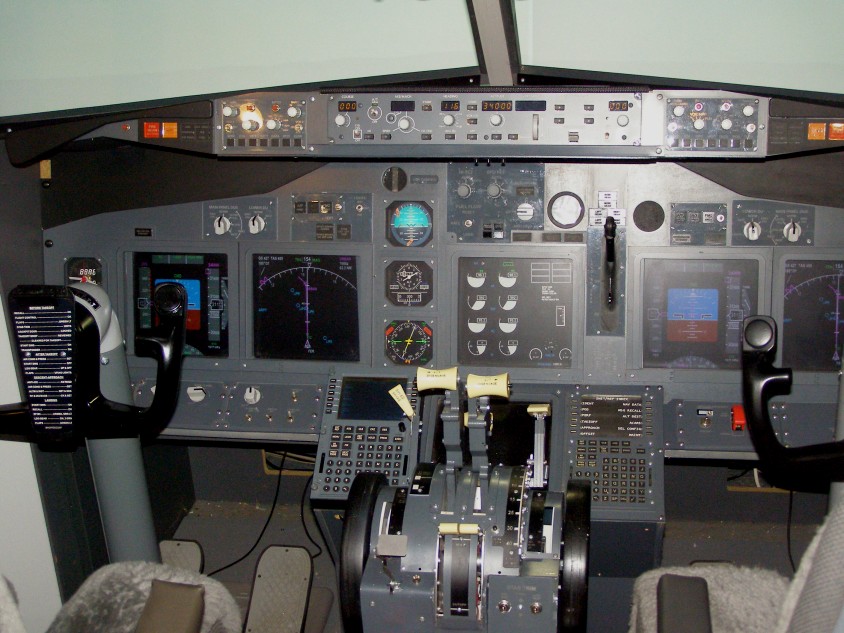
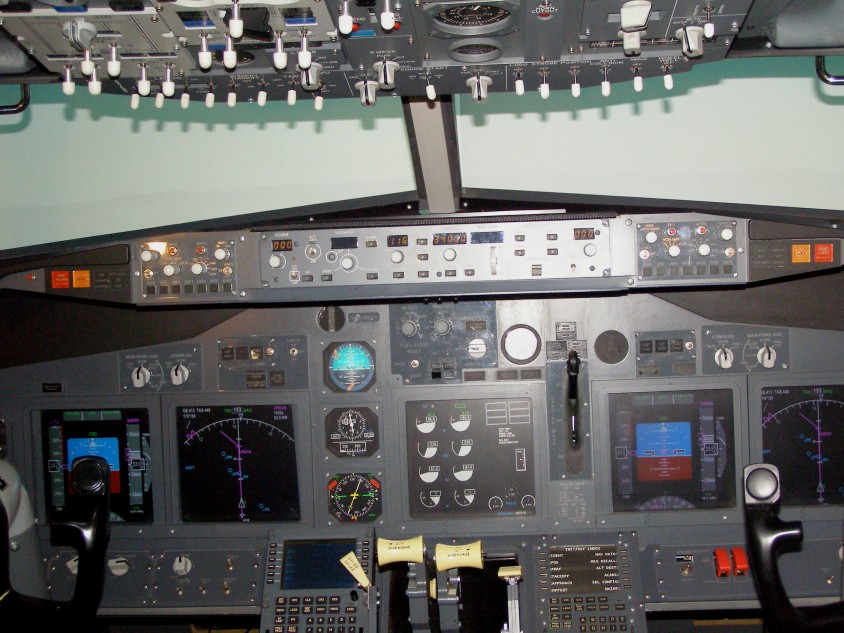
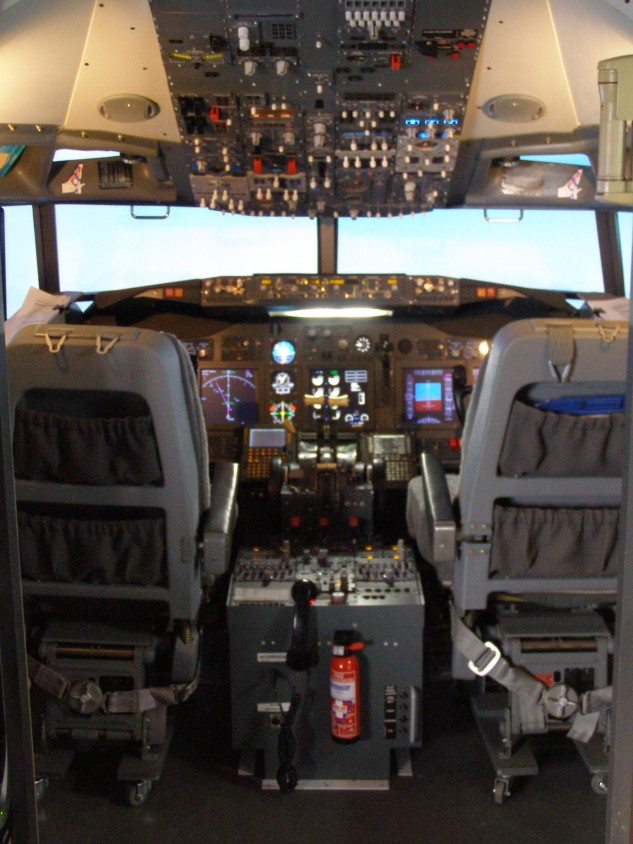
And the level of expansion it allows when used with the MCPEX1 and MIP737 boards is awesome.  I have almost all my systems working at the time of writing which makes the whole experience quite realistic.

Lets Take A Closer look at the CPFlight MCP and how it works with the PMDG
PMDG allow access to the MCP and EFIS controls by the use of simple keystrokes.  They also allow access to their product through several offsets via Pete Dowson's FSUIPC.  If you have the PMDG installed in your FS2004, you can assign keystrokes to a list of MCP/EFIS functions in the Keyboard Commands page under PMDG in the Menu Bar when FS is in windowed mode.   PMDG store these commands in a file called 737kbd.ini which you will find in the PMDG folder inside FS.  Now here's the clever bit, when you install the CPFlight software, you copy the 737kbd.ini file into the CPFlight software folder. Now CPFlight read that file and use it to communicate with the PMDG via their FS_COM utility because it knows what command to send for every function you have assigned a key to.   You have the choice of keys or you can use the recommended one's which CPFlight show on their website.

There Are Three Modes of Control
Ok so the engines are running and all systems are set and operational. You are flying the Aircraft 'Hands On'.  That is you have control of the Throttles and all Flight Control Surfaces. None of the Auto or Semi-Auto systems are engaged. 'You Have Control - It Is Your Aircraft'. The MCP is doing nothing at this stage.
Engaging the Autopilot, the Autothrottle and Flight Director sets the control system up for using the MCP in it's lower level of control 'Selected Mode'. Previously you had directional and speed control based on your inputs by way of the throttles and the Yoke/Rudders. Now with the MCP doing the work for you, command of speed,heading,altitude and vertical speed is controlled by dialling in the numbers and selecting which mode of control you want.
Finally, the highest level of control is achieved when LNAV and VNAV are brought into play.  You must have an active Flightplan entered into the CDU/FMC for these functions to be 'selectable'.  This is 'Managed Mode'.  That is the CDU/FMC is controlling every variable of the flight envelope from efficient power management thru navigating the aircraft in three dimensions and at given or computed  speeds right down to the touchdown zone on any runway at any airport it is instructed to do. AMAZING :o)
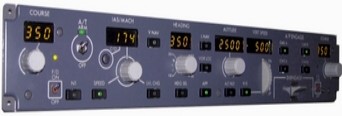
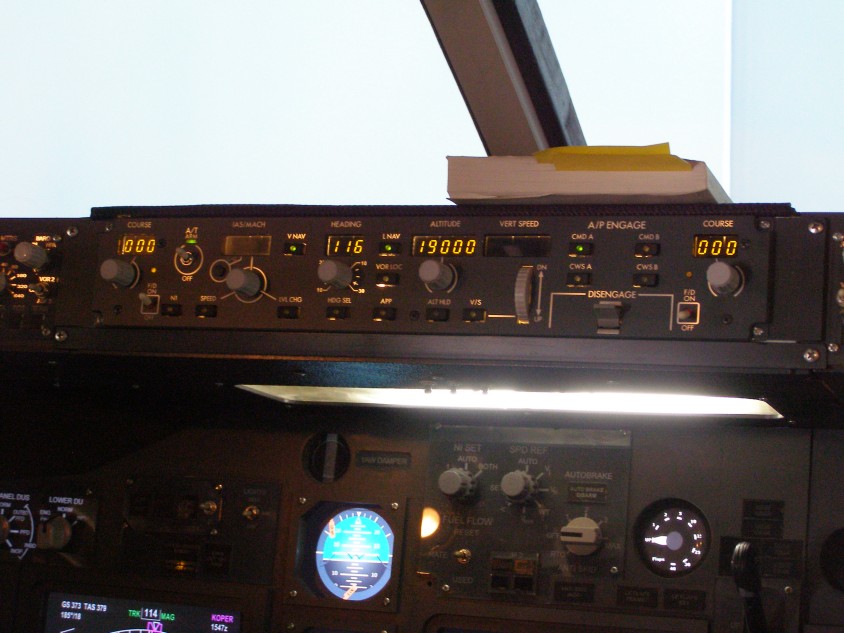
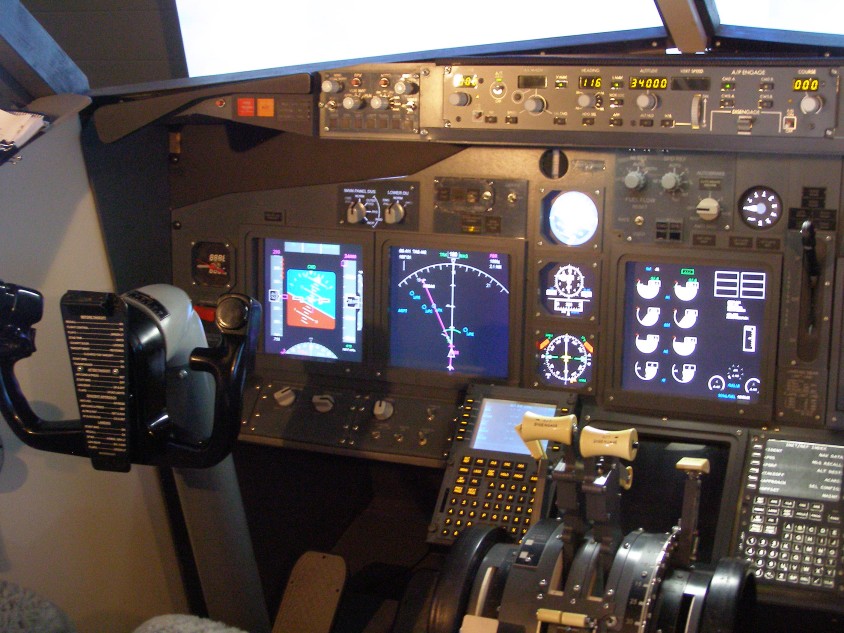
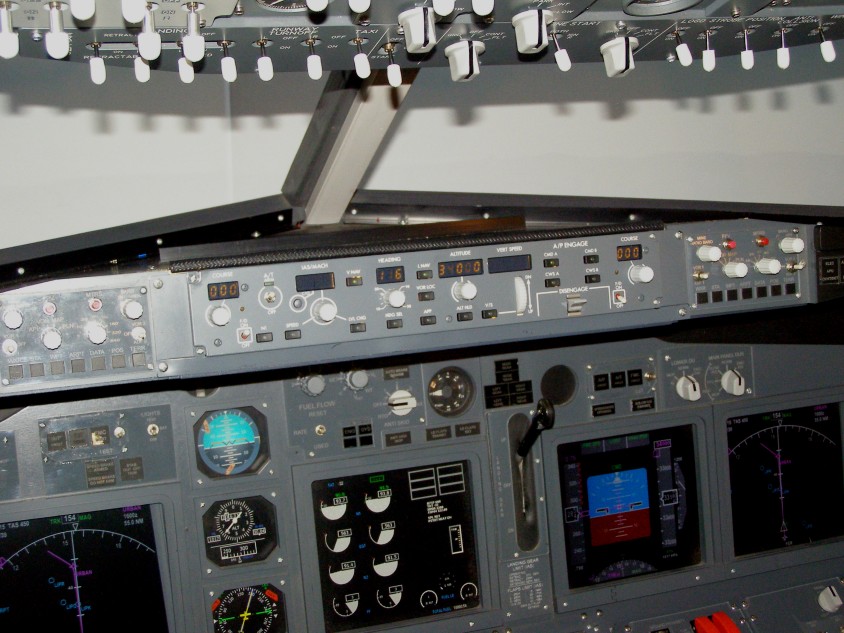
The CPFlight MCP emulates the BOEING B737 Mode Control Panel exactly.   Lets start from the left hand (Captains) side and discover what this awesome piece of equipment can do.
mcp3.jpg (73293 bytes) COURSE Rotary Switch with LED readout  between 0 & 359. When Nav 1 is tuned to a station which is recognised as being either an ILS or VOR frequency, this is the radial (either to or from that the navigation system will lock and steer to when the VOR/LOC mcp2.jpg (55064 bytes) Button is selected. When tuned to an active radio station, the radial will also be displayed on the ND in green and annotated with its identifying radial no.  Usually this is set to the OBS when performing an ILS approach so that when you switch to ILS mode on the ND the display is orientated to the direction of the runway.
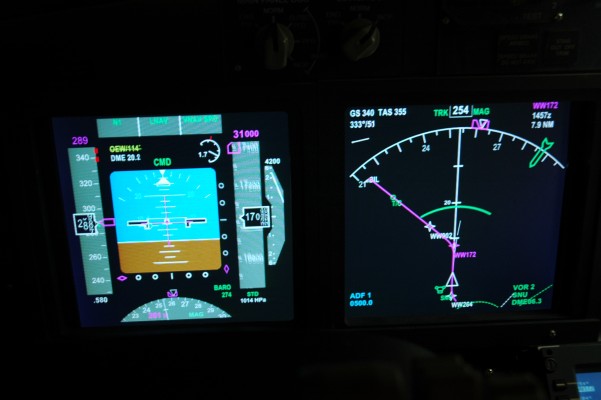
FLIGHT DIRECTOR When selected, on the ground you will see a light green 'rising runway' appear on the PFD and in the air two magenta crosshair bars appear showing the reference path that the aircraft should be on. Look for the green FD symbol in the PFD Annunciator Bar on the PFD when on.
AUTO THROTTLE   When selected, the green LED is on and the Auto Throttle State is displayed in the top left hand corner of the PFD. In the ARMED position, A/T engages automatically when the following AUTOMATIC FLIGHT MODES are engaged:
LVL CHANGE, ALT ACQ, V/S, VNAV ALT HOLD, Glideslope Capture, and TO/GA.      When the Auto Throttle is selected, there are several ways in which it will control the speed of the aircraft. The most basic is that with the Speed Button selected, the engine power will be controlled to keep the aircraft at a given airspeed. So for example, when ATC tells you 'Speed Back to 200 or less', you can select 200 in the IAS window and select the speed button and the aircraft will decelerate to the commanded speed (assuming that the MCP is engaged and the Autothrottle is on).  This is MCP Speed. 
SPEED Button  When engaged, the Button will illuminate and MCP Speed will be annunciated in the PFD Display.  Speed mode holds the aircraft at the speed selected in the MCP speed window.  This is also displayed in magenta above the speed tape on the left of the PFD.
  Going forward, there is a very complex inter-relationship between the FMC and the Auto throttle. We now bring into play N1, MCP Speed (described above) and FMC Speed.   It is a very complex subject which to understand, you really have to read and take in the information contained in the PMDG Manual. Linked to the Speed/Autothrottle is also the CO or change over button which allows the pilot to change the display in the MCP from mach to knots. By default at flight level 260, the indication will change to mach automatically.
N1 Button engages A/T in N1 Mode if it is compatible with Automatic Flight Modes already selected. Button will illuminate to show selection. In N1 mode, the A/T will hold thrust to the limit set in the FMC.  N1 engages automatically when selecting LVL CHG or engaging VNAV in a climb.
MA  This indicator tells you which Autopilot has Authority. In the PMDG/CPFlight configuration the left hand indicator will always indicate on.
mcp4.jpg (62805 bytes) IAS/Mach Display Indicates a default value of 110kts when power is applied to the MCP. Target speed is displayed or input here when a compatible Automatic Flight Mode is selected.  Display blanks when VNAV is engaged or the A/T is engaged in FMC Speed.  In conditions where the selected speed cannot be reached, the IAS display will show a flashing symbol (either an A for underspeed or an 8 for overspeed). I have put the aircraft in a situation where the A has flashed in the display, but at this time, I have been unable to reach a situation where the 8 has appeared in the CPFlight MCP.

 
LEVEL CHANGE Again linked to the Autothrottle, this function allows the pilot to select a given altitude or FL allowing the FMC or the MCP to control the speed of the aircraft (see N1). When descending to a new level you will notice the Autothrottle Indicator in the PFD will indicate a white RETARD message followed by the white ARM message when the Aircraft is either above or at the Target Airspeed. In a climb, the Indicator will normally change to a GREEN indication informing the pilot which system (FMC,N1 etc) is controlling the Autothrottles.   The Default setting in a climb is N1.
mcp4.jpg (62805 bytes)HEADING    The MCP controls the heading of the aircraft in it's most simple form by simply dialing in a heading and pushing the heading select button. Whatever is displayed in the heading indicator will be relayed to the ND (indicated by a dotted magenta line) and also to the heading rose at the bottom of the PFD.  The CPFlight MCP does not simulate the Bank Limit Function but use airspeed/10 +7 to give the bank angle for rate 1 in low speed  manouvers (i.e. the hold, e.g.airspeed 180/10=18 +7 =25 degrees).
VNAV Button When selected, the VNAV button illuminates. The FMC must have an active route entered which has vertical constraints or targets for the route. VNAV selection initiates VNAV Path or Speed and annunciates on the PFD which mode the A/T is in (FMC Speed, N1, Retard or ARM). The IAS/Mach Display will blank as the FMC now has command of the speed. In the climb, the A/T will hold FMC thrust limit and the Automatic Flight System will hold the Target Speed.  Automatic Level Off will occur when the aircraft reaches MCP altitude or FMC altitude whichever is reached first.  mcp5.jpg (67056 bytes)When in the cruise, the A/T holds the target speed set in the FMC. Automatic flight system holds the Cruise Altitude set in the FMC.  If a lower altitude is set in the MCP, the FMC is automatically armed to begin the descent upon arrival at the top of descent point. For the descent, the aircraft can follow either VNAV Path or VNAV speed as selected. In SPD mode, the A/T holds idle and the AUTOMATIC FLIGHT system holds the aircraft at the FMC target speed. In PATH mode, the A/T holds idle but can command the FMC Speed Mode if Groundspeed becomes too low to maintain the FMC Vertical Path.  Automatic Level Off occurs at MCP altitude or FMC altitude, whichever is reached first.
   LNAV is short for Lateral Navigation.To use LNAV functionality, there must be an Active Route entered into the FMC containing waypoints which the system can navigate the aircraft to. Automatic Commanded Flight must be initiated by engaging CMD A or B (see section below). To engage LNAV, there are several criteria which must be met in addition to the above.  You must be in the route segment which is prior to the active waypoint indicated in Magenta at the top right of the ND with the computed arrival time at that waypoint.    Within 3 miles of the route, the aircraft will intercept the route from any heading. Outside of 3 miles, the aircraft needs to be on an intercept heading of 90 degrees or less or the error message will appear in the FMC CDU.  LNAV will automatically disengage when reaching the end of route, when it encounters a route discontinuity,when the aircraft intercepts a VOR radial to follow if the VOR/LOC button has been selected (armed) or if there is a loss of capture criteria. 
So, between LNAV & VNAV, it is theoretically possible to guide an aircraft from 2 given points over several waypoints in 3 dimensions at predetermined speeds...all clever stuff.
mcp5.jpg (67056 bytes)  VOR/LOC Button Pressing this button selects VOR Mode or ILS Mode whichever frequency is tuned.  VOR Mode intercepts and tracks the selected Radial which is input in the course window.  LOC mode will intercept and track the Front Course of an ILS Localiser irrespective of the Course display. Of course for situational awareness it is prudent to input the correct OBS in the course window. VOR/LOC mode can over-ride LNAV,HDG SEL and CWS R.
APP Button Arms Approach mode when at least one Nav Radio is tuned to an ILS frequency.  One Nav Radio tuned or just one Autopilot selected will give a Yellow Indication in the PFD of 'Single Channel'. But as is normal, both Nav Radios are tuned to the ILS and both CMD A & B are selected, the annunciation in the PFD changes to a Green CMD   It is normal practise to tune both Nav Receivers to the ILS Frequency and select both Autopilots when cleared for an ILS approach.  APP Mode requires that the aircraft be on an intercept course with the ILS.  When the aircraft intercepts the Localiser it is steered onto and follows the beam.  As the Glideslope is intercepted and captured, the aircraft will follow this on a descent to the runway threshold.
Alt Window    Selected altitude is entered into here. For example an initial cleared altitude or a descend and maintain flight level instruction. With Vnav selected, the aircraft will arrive at top of descent and then follow the Vnav path down to the entered altitude or flight level.  Or if the aircraft is below the climb profile, in Vnav it will commence the climb to the next computed level or cruise altitude whichever has priority.   Linked to Level Change so in automatic flight (Vnav Selected) the FMC has command of the profile and with Pilot Managed Flight (Level Change Selected) in conjunction with speed, the Pilot has control.
V/S Function    In a Pilot Managed Climb or Descend profile,  Vertical speed management can be introduced by selecting the V/S Button.   This will overide Level Change and illuminate the Vertical Speed Window with a Value.   This value can be increased or decreased using the selector wheel and introducing a greater or lesser rate of climb/descent as desired.
CMDA-CMDB & CWS Buttons    There are 2 Autopilots on the 737NG.  Selecting either CMDA or B will dictate which autopilot has authority.   CWS stands for Control Wheel Steering. Selecting one of these buttons allows directional control from the Yoke.
Disengage Lever    Operation of this lever disengages all autopilot systems from the Aircraft allowing full control to be managed by the Pilot Flying.
F/O Course Indicator    Finally on the right of the MCP is the F/O Course Selector.   Primarily used in conjunction with Project magenta, it is however used in the PMDG to alter VOR2 if you have one.